

7 Ways to Compress A Video Effectively (Without Quality Loss)
A large video file is not friendly for transferring over the Internet, for example, when you desire to attach it as an email attachment, you would receive the notification, telling you the "file is too large". Additionally, when more video files of large sizes are preserved on your devices, they would end up taking up much of your storage space, thus drag down the device performance.
Hence, compressing videos would be a frequent task that many people would need to do today. In the following blog, there will be 7 ways recommended to help you compress a video effectiviely without quality loss on desktops. Now, let's get started!
Things You Need to Know About Video Compression
Before getting down to process an effective video compression, it would be better to grasp some important factors affecting the video file size and the scenarios when we may need to compress a video.
Factors Affecting Video File Size
The video file size is depended by three factors, including the bitrate, frame rate, and resolution. In most cases, when we process the video file compression, we are actually reducing the figures of these three parameters to receive the video file of smaller size.
Bitrate: Bitrate is used for measuring the kilbits per second of a video file. The higher bitrate is, the better quality the video will have, but this also lead to the larger file size of the video.
Frame rate: Frame rate is defined as the number of frames per second of a video. Likewise, larger Frame rate could lead to larger file size of the video as well.
Resolution: Resolution is measured in pixels. Just like Bitrate, it stands to represent the image quality of a video. Therefore, as your video file has higher resolution, its quality would be better, but also, the file size will be larger.
When Will We Need to Compress A Video
You may probably require to compress a video while encountering with the following situations:
When the video file is too large to be send through emails or chatting platforms;
The video fails to be uploaded on video streaming sites for sharing for its large size;
The large video files occupy much device storage, leading to the slow performance;
Don't worry if you also get some large video files required to be compressed. Now, the following parts of the blog will provided 7 ways with different software to enable the effective and convenient video file compression. Keep reading and discover the best way to try!
How to Compress A Video File Without Quality Loss on Windows/Mac
The best ranked video compressor for Windows/Mac is no doubt the VideoSolo Video Converter Ultimate. This all-featured video compressor provides a powerful compressing tool to enable users to compress video/audio of large sizes in a go. It enables users to batch compress video files with 50X faster speed, thus boost higher efficiency in dealing with the video compression.
Highlighted Features of VideoSolo Video Converter Ultimate:
User-friendly interface with easy-to-grasp functionality;
Customized settings to personalized video outputs based on user requirements;
Equipped with more tools inside the software to edit, enhance, or convert compressed videos at once;
50X faster speed available to accelerate the video compression and save time;
Great balance in processing the video compression with decent quality but smaller size.
Now, also grasp the steps to process video compression via VideoSolo Video Converter Ultimate within 3 easy steps.
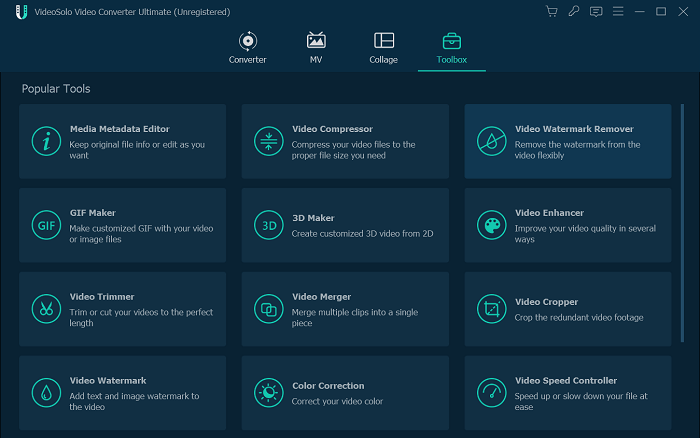
STEP 1. Launch VideoSolo Video Converter Ultimate, then you are required to navigate to the "Toolbox" and select the "Video Compressor" or importing the video files you desire to smaller the sizes.
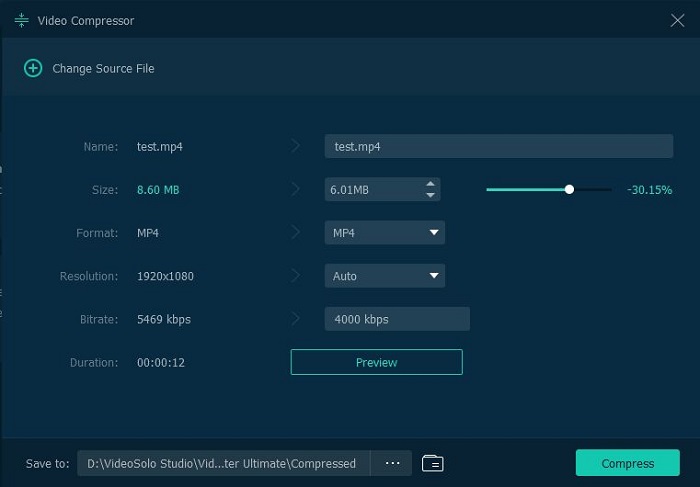
STEP 2. When the videos are imported, you are available to customize the output settings such as the size, resolution, birate, format, and more as you required.
STEP 3. As the settings completed, one tap on the "Compress" icon to give it a go, then VideoSolo Video Converter Ultimate will process compressing the videos effectively for you.
Other 6 Free Video Compressors to Compress Video Online
Replacing using a desktop software to compress video, people may desire an option to process the video compression online, as they are able to access the tool on any device, including the mobile phones or tablets flexibly. Hence, this part will also recommend the other free online video compressors to enable a convenient video compressing process on all devices, even without wasting a penny. Now, you are able to access them and try out the free services online.
1. Zamzar
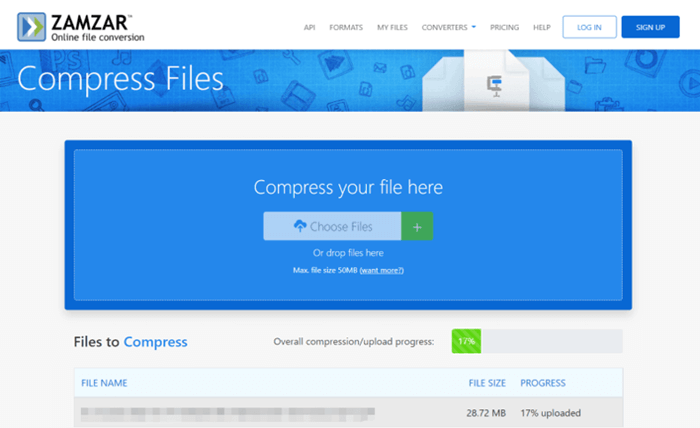
In addition to the file format conversion, Zamzar is also compatible with file compression now. It delivers good quality and fast performance to process video compression online freely. Also with an intuitive interface, you are able to smaller video file size within only several clicks, greatly boosting the efficiency.
Pros:
Easy-to-grasp video compression process;
Available to compress videos freely;
A variety of video formats supported;
Workable on all devices.
Cons:
File limit at 50 MB in maximum;
Not available to customize compression settings at all.
User Guide:
STEP 1. Nagivate to Zamzar Compress Files tool in browser.
STEP 2. Hit the "Choose Files" icon to select uploading the video files you desire to compress their sizes.
STEP 3. Wait for Zamzar to upload and compress the video automatically.
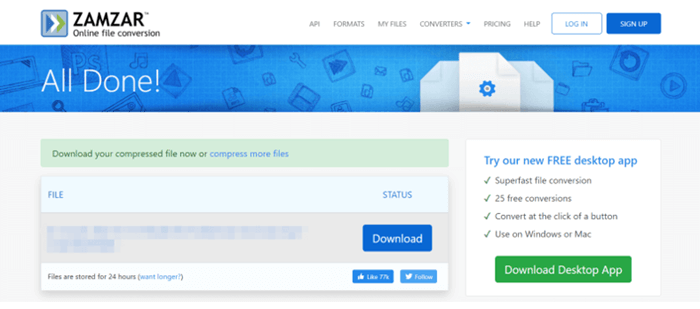
STEP 4. Download the compressed file offline directly.
2. VideoSmaller
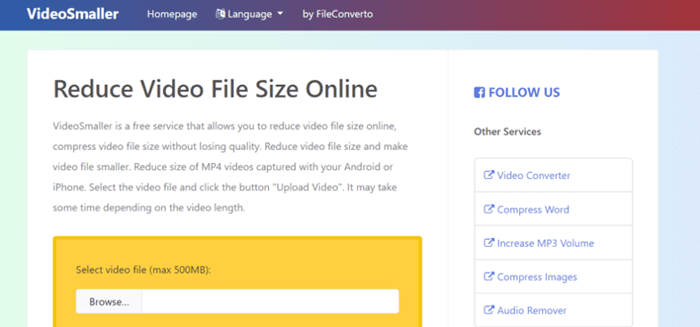
VideoSmaller is another helpful video compressor for users to easily process the video compression online without software installation required. It supports to compress videos at up 80% smaller size, and its usage would be pretty simple. For security protection, VideoSmaller will automatically remove all your uploaded files after just a few hours in order to keep your data safe. VideoSmaller is a reliable tool for compressing video online.
Pros:
Mainstream video formats are supported;
Embedded security teches ensuring the best data privacy protection;
Selectable compression level.
Cons:
500 MB limit for each uploaded video file;
No batch compression feature available;
Ads contained.
User Guide:
STEP 1. Open VideoSmaller in browser.
STEP 2. Click the "Browse..." icon to locate and select the video file to compress.
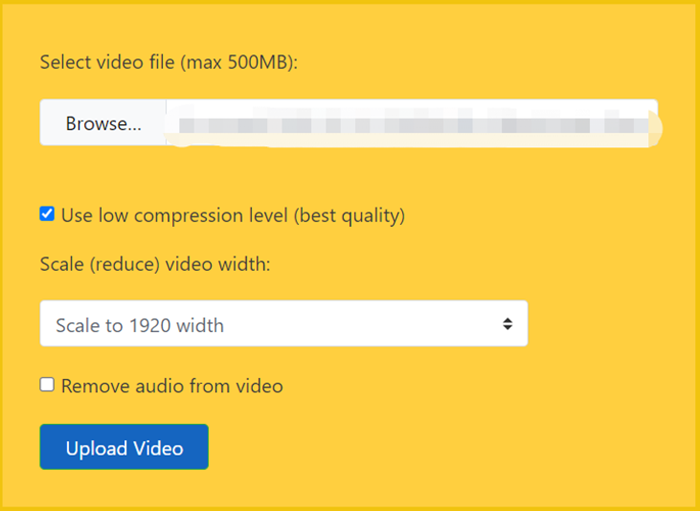
STEP 3. Customize the video width and select the low compression level if you need.
STEP 4. Submit "Upload Video" to process the compression. When it completes, download the compressed video offline right away.
3. FreeConvert
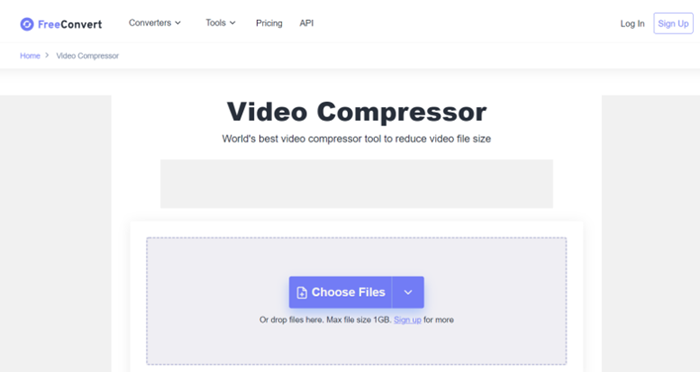
The popular online services provider, FreeConvert, also offers the reliable and professional video compression feature for users to compress video sizes online without hassle. It enables convenient video output settings for helping to get personalized videos offline at smaller sizes within only easy clicks. On any device, users are able to access this web-based platform to process video compressor with ease.
Pros:
Free to use;
Available to customize video parameters before compressing;
Sync with Dropbox, Google Drive for file backup conveniently.
Cons:
Only video file less than 1 GB can be processed;
Highly rely on network condition to process the video compression;
Ads listed on the user interface.
User Guide:
STEP 1. Head to FreeConvert Video Compressor, and hit the "Choose Files" to upload video files for compressing.
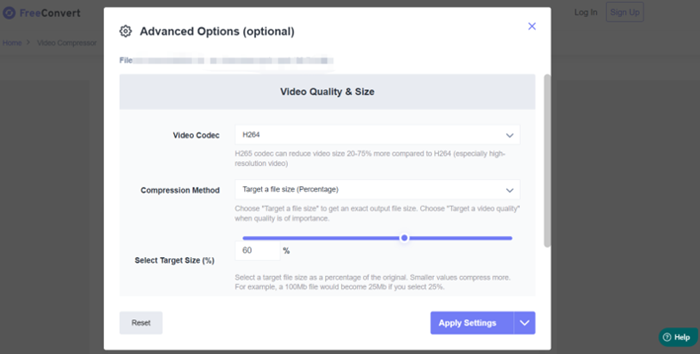
STEP 2. Click the gear icon to customize the video settings before starting to compress it.
STEP 3. Hit the "Compress Now" icon, and wait for FreeConvert to complete the video compression for you.
STEP 4. Download the compressed video for preserving offline.
4. Clideo
As a reliable online video compressor, Clideo delivers the clean interface to enable easy-to-grasp functionality for users to easily get their large video files compressed on any device. In addition, Clideo also provides more extra solutions to edit videos. As an all-featured online video editor, Clideo is able to fulfill people's needs in managing or editing videos on all devices without software installation at all.

Pros:
Available to edit compressed videos online with all types of video editing tools;
Maintain the fast speed to compress video files with ease;
No software installation required to process the online video editings;
Clean interface without messy ads.
Cons:
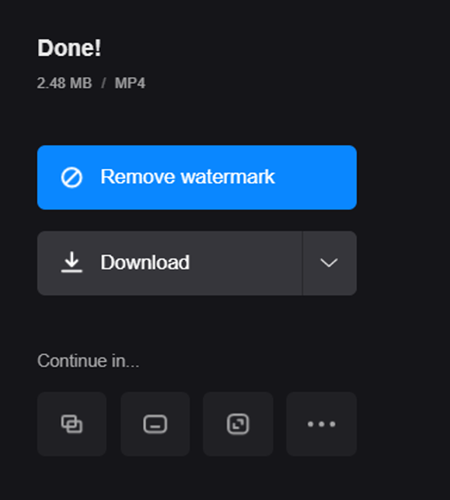
- Watermark will be added to the compressed videos.
User Guide:
STEP 1. When you have navigated to Clideo online video compressor, hit the "Choose file" icon to select the video files for uploading.
STEP 2. Wait for the video to be uploaded. Then you are able to process conpressing the video immediately.
STEP 3. When Clideo completes the compression, click the "Download" icon to preserve the compressed video offline.
5. CloudConvert
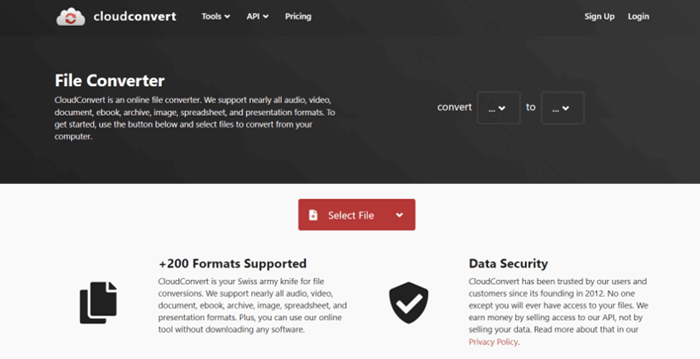
To resize video file size without greatly affecting the video quality, CloudConvert also provides professional help to preserve the best quality while processing the video compression online. It supports the mainstream video formats and is able to batch compress videos at once for boosting efficiency. Meanwhile, by connecting with the cloud preservation services, users are able to back up their compressed videos easily within several clicks.
Pros:
All popular video formats supported;
Cloud preservation to back up compressed videos available;
Batch conversion to boost efficiency;
Best quality preserved to ensure the video playback experience.
Cons:
- Video editing features are lacked.
User Guide:
STEP 1. Head to CloudConvert. Then directly click the "Select Files" icon for browsing the video files to upload.
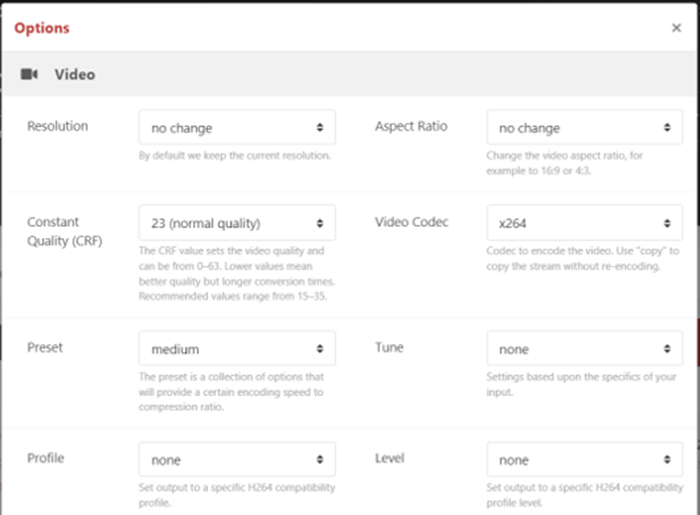
STEP 2. Select an output format. Then click the setting icon beside to customize the output settings, including the resolution, quality, Fps for making the video size to be smaller.
STEP 3. When the editing is completed, save the changes and select to "Convert".
STEP 4. When the compress video file is prepared, you are able to download it offline for preservation directly.
6. Clipchamp
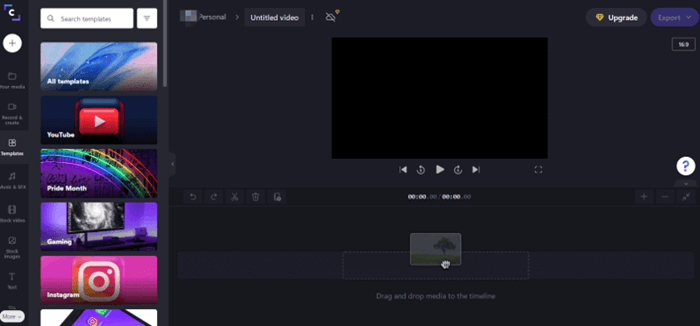
The final recommendation method to compress video files online is using Clipchamp. This is an all-in-one online editor with all types of video editing features inside the platform. You are able to compress the video, meanwhile editing it with the provided functionality. Only by logging into your account, you are able to access the online editor to process the video compression with the best quality at ease.

Pros:
All-in-one online video editor to compress and edit videos conveniently;
Best quality balance while compressing video;
Free templates available to edit the videos conveniently;
No upload limit for the video file.
Cons:
Account registration is required for accessing the online editor;
The performance would be slow sometimes;
Output options are limited;
Only 5 files are able to be compressed for free for one account.
User Guide:
STEP 1. Navigate to Clipchamp and log in to your account for accessing the online editor.
STEP 2. Hit the "+" icon to import the video file to the editor then select "Compress my video" to customize the settings for processing the compression.
STEP 3. When the settings complete, submit to "Export" the compress video file for saving locally.
Comparison Table Help You to Choose the Best Video Compressor
When you have gone through the 7 ways to compress videos on desktops effectively, compare them to pick the most ideal option to get started with the following chart right away:
| Software/Features | VideoSolo | Zamzar | VideoSmaller | FreeConvert | Clideo | CloudConvert | Invideo |
| Supported input formats | 1000+ formats | 1000+ formats | MP4, AVI, MPEG, MOV | 40 formats | Popular formats | 200+ formats | Limited options |
| File upload size limitation | No limit | 50 MB | 500 MB | 1 GB | 500 MB | No limit | No limit |
| Compression speed | 50X faster | Quick | Normal | Quick | Quick | Quick | Normal |
| Output quality | High | Good | Good | Good | Good | High | High |
| Supports batch compression | √ | √ | × | √ | √ | √ | × |
| Convert files to other formats | √ | √ | × | √ | √ | √ | × |
| Video editing features | √ | × | × | × | √ | × | √ |
| Price | From US$34.95 (Free trial available) | From US$9 (Free trial available) | Free | From US$9.99 (Free trial available) | From US$9 (Free trial available) | From US$8 (Free trial available) | From US$9 (Free trial available) |
Through the detailed comparison, you must be able to sort out the best pick to compress video files without hassle now. Simply pick your best option to get started. Think this post helpful? Share it via your friends!